TNT SIM Registration Server Error Solution


 March 14, 2026 3:20 am
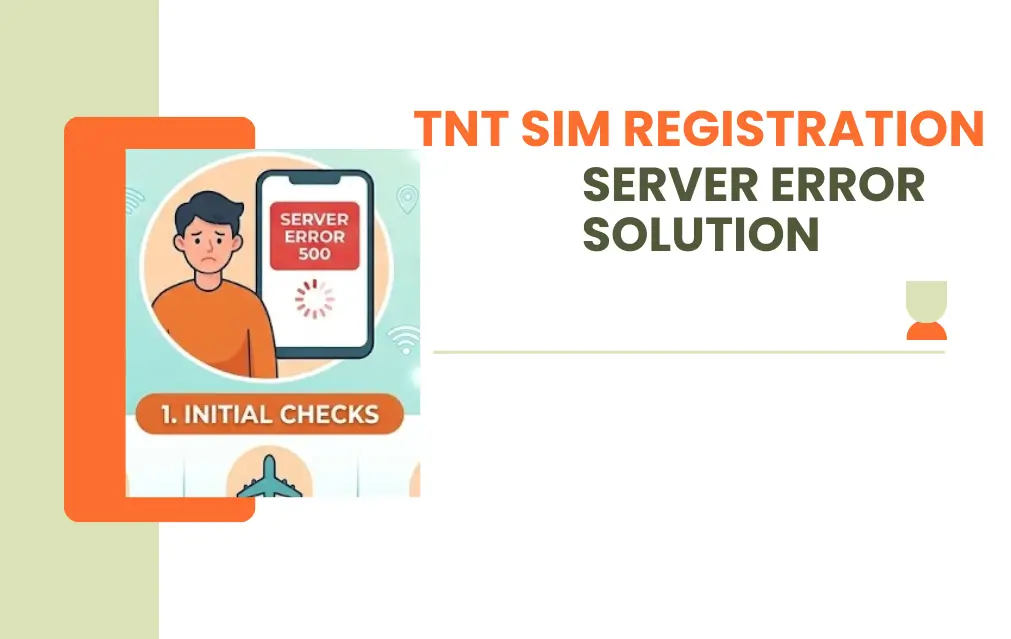
Registering your TNT SIM should take minutes, but a server error can turn it into a frustrating hour-long battle. The good news is that most of these errors are fixable – and many of them have nothing to do with TNT’s servers at all.
This guide covers every practical fix, from quick browser tricks to device settings, so you can get your SIM registered without the headache of repeated failed attempts.
What is TNT SIM Registration Server Error?
A TNT SIM Registration Server Error is a technical issue that occurs either on the registration portal or at the network level. When the server cannot process your request – due to overload, a connectivity issue, or a temporary glitch – it throws an error message instead of completing your submission.
Different error messages mean different things. Here is a quick breakdown:
Read also:TNT SIM Registration
| Error Message | Meaning |
|---|---|
| Server Error / Try Again Later | System overloaded or maintenance in progress |
| Request Timeout | Internet connection is slow or unstable |
| Submission Failed | Data was not properly submitted |
| Page Not Loading | Server response is delayed |
| Server Busy / 502 Bad Gateway | Too many active users on the portal |
| Internal Server Error 500 | Maintenance underway or a site bug |
Important: Do not keep clicking the Submit button when you see these errors. Multiple clicks create duplicate pending requests that can complicate your registration further.
Common Causes of Server Errors
Understanding the cause helps you pick the right fix on the first try. Here are the most common reasons the TNT SIM registration portal fails:
- Server Overload When millions of users rush to register at the same time, the portal buckles under high traffic volume and starts throwing errors across the board.
- Browser Cache and Old Data Cached images, files, and cookies from a previous failed attempt can conflict with a new session, breaking the secure connection between your device and the server.
- Unstable Internet Connection A flickering connection can interrupt the submission at exactly the wrong moment, especially on public WiFi where shared bandwidth drops unpredictably.
- Incompatible or Outdated Browser Older browser versions do not support the modern security scripts the portal runs on, causing failures during OTP verification or ID upload.
- Incorrect Information A wrong ID detail, mistyped phone number, or expired OTP causes submission failures that look like server errors but are actually validation rejections.
- Website Maintenance During scheduled maintenance, Smart and TNT take the portal offline entirely and no request will go through regardless of your connection quality.
TNT SIM Registration Server Error Solution
Work through these fixes in order. Most users find their solution within the first three steps.
1. Refresh and Reopen the Page
Close the browser tab entirely – not just refresh it. Open a fresh tab and navigate back to the registration page to clear the broken session.
2. Switch to Incognito or Private Mode
Opening the registration link in a Private or Incognito tab bypasses all saved cookies from previous sessions, which are often the hidden cause of repeated errors.
3. Check and Switch Your Internet Connection
- Swap from WiFi to mobile data or the other way around
- Use 4G or 5G for mobile data wherever possible
- Avoid public WiFi entirely during registration
| Internet Type | Recommendation |
|---|---|
| Mobile Data | Use 4G or 5G |
| Home WiFi | Stable broadband is fine |
| Public WiFi | Avoid — too unstable |
4. Clear Browser Cache
- Open your browser settings
- Select Clear Browsing Data
- Delete cached images, files, and cookies
- Reload the registration page fresh
5. Try a Different Browser
| Browser | Status |
|---|---|
| Google Chrome | Recommended |
| Mozilla Firefox | Good alternative |
| Microsoft Edge | Works well |
| Safari | Best for iPhone users |
6. Restart Your Phone
A simple restart clears background processes and temporary glitches that a browser switch alone will not fix. Try registering again before opening anything else.
7. Register During Off-Peak Hours
If the portal is slow but responsive, server traffic is the issue – not your device.
| Best Time | Reason |
|---|---|
| Late Night | Server traffic is at its lowest |
| Early Morning | Portal responds fastest |
Troubleshooting Checklist
Use this table to match your specific error to the right fix:
| Error Message / Symptom | Likely Cause | Recommended Solution |
|---|---|---|
| Server Busy / 502 Bad Gateway | Too many active users | Wait 15 minutes, retry during off-peak hours |
| OTP Not Received | Signal issue or server delay | Restart phone, click Resend OTP once only |
| Internal Server Error 500 | Maintenance or site bug | Check TNT’s official social media for updates |
| Photo Upload Failed | File size too large | Keep ID and selfie photos under 2MB in JPEG format |
| Page Not Loading | Server response delay | Switch browser, clear cache, try Incognito Mode |
| Submission Failed | Data not properly submitted | Verify all details, avoid multiple submit clicks |
Optimize Your Device for Registration
Before opening the portal, spend two minutes preparing your device. It prevents the majority of errors before they start.
- Update your OS – Whether you are on Android or iOS, an outdated operating system may not support the modern web encryption the portal requires. Update it first to avoid security certificate errors.
- Disable your VPN – The TNT portal blocks non-local IP addresses for security reasons. If you are running a VPN, turn it off completely before starting registration.
- Set Date and Time to Automatic – Go into your phone settings and switch date and time to automatic. Incorrect time settings cause security certificate errors that look exactly like server errors on the surface.
Important Requirements for TNT SIM Registration
Have everything ready before you start. Running out mid-process is one of the most common reasons sessions time out.
| Requirement | Details |
|---|---|
| Valid Government ID | Passport, National ID, or any government-issued photo ID |
| Active TNT SIM | The SIM card that needs to be registered |
| Personal Information | Full name, date of birth, complete address |
| Selfie Verification | A live selfie for identity confirmation |
A few things to keep in mind:
- ID and selfie photos must be in JPEG format and under 2MB – anything larger triggers a Photo Upload Failed error
- Verify your OTP immediately once it arrives – OTPs expire quickly and a missed window means restarting the submission
- Double-check your name, date of birth, and address against your ID before hitting submit
Final Alternative: Register via the GigaLife App
If the web portal at simreg.smart.com.ph keeps showing server errors after trying all the fixes above, stop using the website and switch to the Smart/TNT GigaLife App instead.
Why the app works better during high-traffic periods:
- It runs on a different API than the browser portal, so it stays more stable when the website is overloaded
- It automatically detects your mobile number, removing the risk of manual entry errors
- It provides a cleaner, more reliable registration experience during peak demand periods
Expert Tip: If you have been clicking Submit repeatedly on the website, stop immediately. Each click creates a new pending request, and multiple pending requests can flag your registration as a duplicate. Close the tab, wait for the server to stabilize, then start fresh through the GigaLife App.
Tips to Avoid TNT SIM Registration Errors
- Use a stable internet connection – 4G, 5G, or home broadband WiFi. Never register on public WiFi
- Enter correct personal information – name, date of birth, and address exactly as they appear on your ID
- Upload your government ID in JPEG format, under 2MB, with no glare or cutoff edges
- Verify your OTP immediately the moment it arrives – do not leave the page or wait
- Do not repeatedly refresh the portal mid-process – it resets your progress and can create conflicting pending requests
- Register during off-peak hours – late night or early morning gives you the fastest, most stable portal experience
- Keep your device updated, VPN turned off, and date and time set to automatic before you begin
FAQS
Why does TNT SIM registration keep showing a server error? The most common reasons are server overload from high traffic volume, an unstable internet connection, outdated browser cache, or scheduled maintenance on the Smart/TNT portal. In many cases, the issue is on your device rather than TNT’s servers, and simple fixes like clearing cache or switching browsers resolve it quickly.
How do I fix the TNT SIM registration page not loading? Start by switching to Incognito Mode and clearing your browser cache. If the page still does not load, try a different browser such as Mozilla Firefox or Microsoft Edge, or switch between WiFi and mobile data to refresh your IP address. Restarting your phone before trying again also helps.
What is the best time to register my TNT SIM? Late night and early morning are the best times to register. Server traffic drops significantly during these hours, and the portal responds much faster compared to peak daytime periods when millions of users are trying to access it simultaneously.
Can I register my TNT SIM using the GigaLife App? Yes, and it is often the most reliable option when the web portal is experiencing server errors. The GigaLife App uses a different API than the website and tends to stay more stable during high-traffic periods. It also automatically detects your mobile number, reducing manual entry errors.
What documents do I need for TNT SIM registration? You need a valid government-issued ID such as a Passport or National ID, your active TNT SIM card, your personal details including full name, date of birth, and address, and a selfie for identity verification. Make sure your ID photo is in JPEG format and under 2MB before uploading.
Why is my OTP not arriving during TNT SIM registration? An OTP may not arrive due to a signal issue, a server delay, or a temporary network problem. Restart your phone first, then click Resend OTP only once. Clicking it multiple times can cause further delays. If the issue persists, wait a few minutes before requesting a new OTP.
Will clicking Submit multiple times cause problems? Yes. Each click creates a new pending request in the system, and multiple pending requests can flag your registration as a duplicate. If you are stuck on a submission error, close the tab entirely, wait for the server to stabilize, and start a fresh attempt rather than clicking Submit again.
Why is my photo upload failing during registration? Photo upload failures are almost always caused by file size. Your ID photo and selfie must both be in JPEG format and under 2MB each. If your files are larger, compress them before uploading. Make sure the photos are clear, well-lit, and show the full ID without any edges cut off.
Conclusion
TNT SIM registration server errors are common, but they are almost always fixable with the right approach. Whether the problem is a browser cache conflict, an unstable internet connection, an outdated OS, or simple server overload during peak hours, every issue covered in this guide has a clear and practical solution.
Start with the quick fixes – Incognito Mode, cache clearing, browser switch, and connection swap. If those do not work, optimise your device settings and try during off-peak hours. And if the web portal continues to struggle, the GigaLife App is your most reliable path to completing registration without the frustration.
Azlan Tareen
Azlan Tareen is a TNT SIM registration specialist with over 4 years of experience in the Philippine telecom sector. He focuses on TNT SIM activation, Smart services, APN settings, PUK codes, and mobile loading through GCash. Azlan shares practical guides to help users manage TNT services easily. Connect with him on LinkedIn or explore his telecom insights online.